How We Reverse-Engineered Apple's Scroll Animation (And Why It's Not As Hard As You Think)
How We Reverse-Engineered Apple's Scroll Animation
If you've ever scrolled through Apple's AirPods Pro or MacBook Pro product pages, you've seen it — a product rotating, morphing, or exploding in perfect sync with your scroll position. It feels like magic. It looks like it costs a fortune.
It doesn't.
We recently rebuilt this technique from scratch for the FlowEdge AI homepage. This post is a technical breakdown of exactly how it works, what Apple does behind the scenes, and how any capable dev team can ship the same effect.
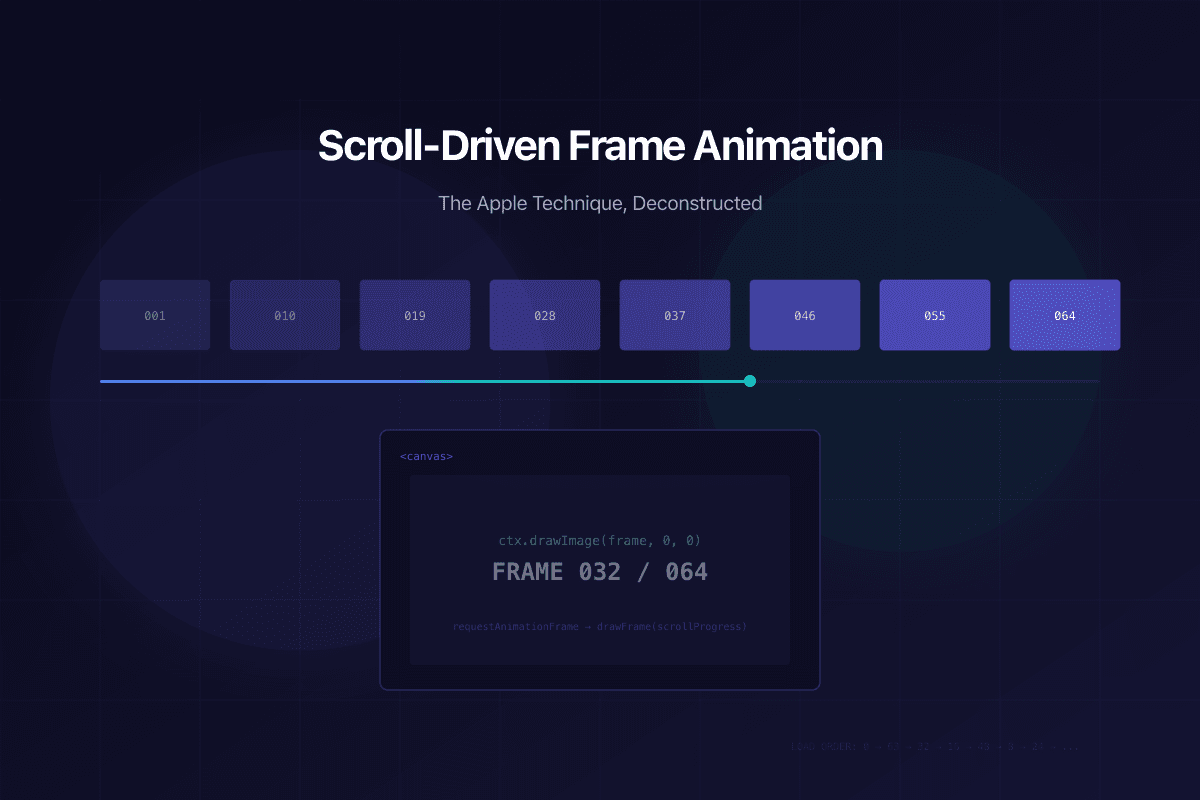
The Core Idea: A Flip Book on a Canvas
Strip away the polish, and the technique is surprisingly simple. It's a digital flip book.
- Pre-render a sequence of frames — 64 to 148 images showing progressive states of your animation
- Pin a
<canvas>element to the viewport using CSS sticky positioning or a scroll library - Map scroll position to frame index — as the user scrolls, calculate which frame to show
- Draw the current frame onto the canvas using
context.drawImage()
That's it. No WebGL. No Three.js. No video codec. Just images drawn on a canvas, driven by scroll.
Why Canvas, Not Video?
You might think: "Why not just scrub a video with scroll?" There are three reasons Apple uses image sequences instead:
- Precision: Video codecs use keyframes and interpolation. Scrubbing a video backwards or jumping to an arbitrary point creates visual artifacts. Individual images are pixel-perfect at every position.
- Performance:
drawImage()on a canvas is a single GPU-composited operation. Video decoding is CPU-intensive and unpredictable. - Control: With image sequences, you control exactly which frames exist. You can have more frames during complex transitions and fewer during static holds.
The GSAP ScrollTrigger Setup
We use GSAP ScrollTrigger with scrub mode. Here's the conceptual structure:
Section height: 350vh (250vh of scroll runway + 100vh pinned viewport)
Canvas: pinned to viewport via ScrollTrigger pin
Frame proxy: { frame: 0 } tweened to { frame: 63 }
Scrub: 0.8 (slight smoothing for natural feel)
The onUpdate callback calls drawFrame(proxy.frame), which rounds to the nearest integer and draws that image. GSAP handles all the scroll-to-progress math.
The Secret Sauce: Binary Priority Loading
Here is where Apple's engineering gets clever. If you preload 148 frames sequentially (1, 2, 3, 4...), the user sees nothing until frame 1 loads, then a choppy animation that gets smoother as more frames arrive.
Apple uses binary subdivision loading. Instead of loading frames in order, they load them in priority tiers:
- Tier 0: Frame 1 (instant first impression)
- Tier 1: Last frame (you know where the animation ends)
- Tier 2: Frame at 50% (now you have a rough 3-frame animation)
- Tier 3: Frames at 25% and 75% (5 frames — already watchable)
- Tier 4: Frames at 12.5%, 37.5%, 62.5%, 87.5% (9 frames — smooth enough)
- Tier 5+: Fill in all remaining gaps
This means that within 200ms, you have ~10 keyframes spread evenly across the entire animation. The user can start scrolling and see a coarse but complete animation while the remaining frames load in the background.
We paired this with a nearest-frame fallback in the draw function. If the user scrolls to frame 37 before it's loaded, we find the closest loaded frame (maybe 32 or 40) and draw that instead. No blank canvas, ever.
The Numbers: Quality vs. Payload
This is where real-world engineering diverges from Apple's approach.
Apple's AirPods Pro page ships ~15MB of images across multiple scroll sequences. They get away with this because:
- They built a multi-billion-dollar private CDN (moved off Akamai around 2014-2016) with edge servers physically close to every user
- They serve over HTTP/2, multiplexing all 148 image requests over a single TCP connection
- Their audience expects a premium loading experience and typically visits on fast Wi-Fi
- They have a static image fallback for slow connections
For a business website like ours, 15MB is a non-starter. Google PageSpeed would penalise us, and our visitors expect instant loads.
Here's how we balanced it:
| Metric | Apple AirPods | FlowEdge | |---|---|---| | Frames | 148 | 64 | | Format | PNG (~100KB each) | WebP q65 (~44KB each) | | Total payload | ~15MB | 2.77MB | | Resolution | ~1158×770 | 1024×576 | | Loading | Binary priority | Binary priority | | Fallback | Static image | Nearest loaded frame |
Our frames are displayed behind a mix-blend-mode: screen layer with a dark scrim overlay — fine detail loss at 1024×576 is genuinely invisible in this context. The screen blend dissolves the near-black frame backgrounds, leaving only the glowing elements floating over the page.
The Retina Canvas Trick
Apple renders their canvas at the device's native pixel ratio (window.devicePixelRatio), capped at 2x for performance. This is the difference between a sharp and a blurry animation on modern displays:
Canvas CSS size: 1920 × 1080 (what CSS says)
Canvas buffer size: 3840 × 2160 (what the GPU renders)
Context scale: ctx.scale(2, 2)
Image smoothing: 'high'
Without this, your canvas looks muddy on every Retina MacBook and modern phone. With it, the animation is crisp at any zoom level.
Performance: Avoiding Forced Reflows
The biggest performance trap in scroll-driven animations is layout thrashing — reading layout properties (like getBoundingClientRect()) inside animation loops.
Every call to getBoundingClientRect() forces the browser to recalculate layout. If you call it 60 times per second inside drawFrame(), you create a "forced reflow" that blocks the main thread.
Our solution: cache the canvas dimensions in a ref and only update them on window resize. The draw function reads from the cache, never from the DOM.
Can You Ship This?
Yes. The entire technique breaks down to:
- Content production — Render your frames (3D software, video export, or even a screen recording split into PNGs)
- Compression — Convert to WebP at quality 60-70, resize to match your canvas needs
- Canvas + ScrollTrigger — Pin a canvas, tween a frame index, draw on update
- Binary loading — Load keyframes first, fill gaps progressively
- Fallback — Nearest-frame draw for unloaded frames, static image for slow connections
The engineering is a weekend project. The content production — creating 64+ frames of a compelling animation — is the real investment. Apple hires motion designers to render studio-quality 3D product animations. For most businesses, a well-produced screen recording or a motion graphics export works perfectly.
What We Learned
- Never sacrifice frame count for file size. Halving frames from 64 to 32 saves ~1.5MB but makes the animation visibly choppy. Keep all frames, compress harder instead.
- WebP at quality 65 is the sweet spot for scroll sequence frames. Below 55, compression artifacts become visible. Above 75, file size balloons with minimal visual gain.
requestIdleCallbackis your friend for background frame loading — it yields to the browser between chunks so the page stays responsive during initial load.- The scrim matters more than the frames. When your animation sits behind a semi-transparent overlay, you can compress more aggressively because the overlay hides artifacts.
The technique that looks like it requires Apple's engineering budget actually requires Apple's design budget. The code is the easy part.
The scroll animation you experienced on this page uses exactly the techniques described above. View source if you don't believe us.